1
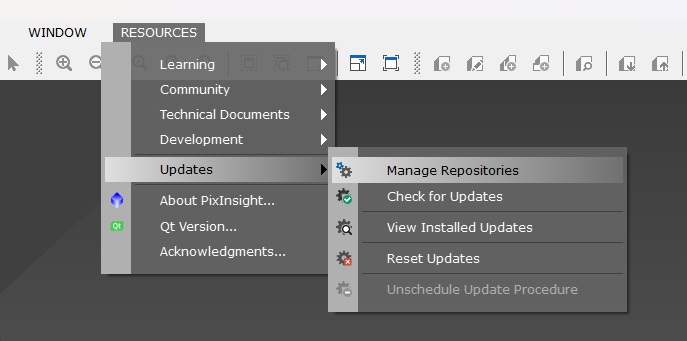
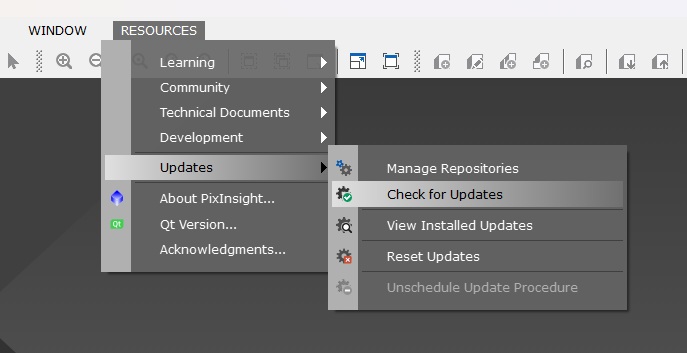
Open Manage Repositories
In PixInsight, go to Resources, then Updates, then Manage Repositories.
PixInsight module setup
SpikelessAI is a paid PixInsight process module. This page walks through all three steps: buying it on Ko-fi, installing it through PixInsight's repository manager, and activating your license.
Step 1
SpikelessAI is sold through Ko-fi. Purchase it there first — you'll need details from your order for the next two steps.
Step 2
Add the SpikelessAI repository so PixInsight can find and install the module. Copy the URL below, then add it in PixInsight through the update repository manager.
In PixInsight, go to Resources, then Updates, then Manage Repositories.
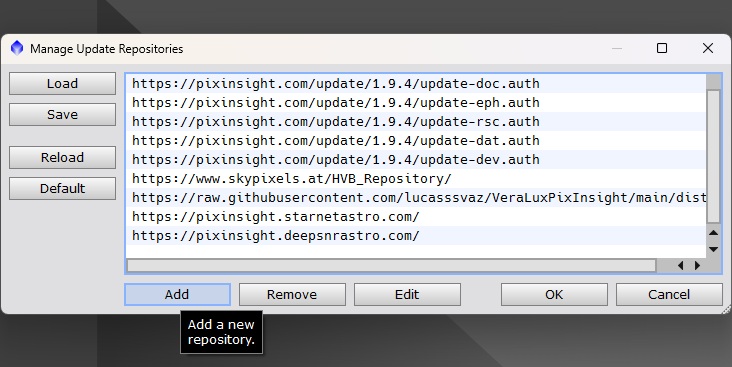
In the repository manager window, click the Add button.
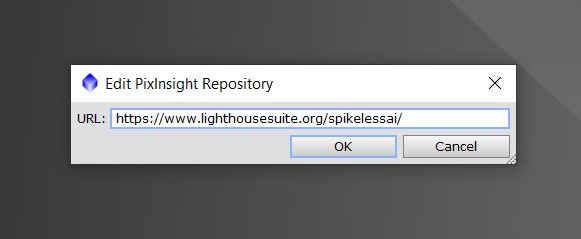
Paste the copied URL into the repository URL field, then press OK.
Run Check for Updates, install the available SpikelessAI module, and restart PixInsight if requested.
Step 3
Once installed, SpikelessAI needs to be activated with the code from your Ko-fi order.
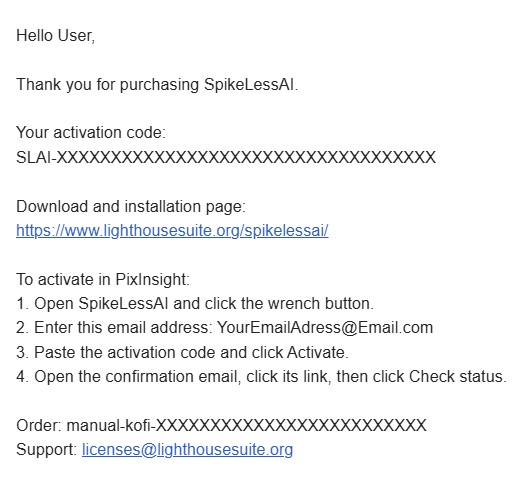
After purchase, you'll receive an email with your activation code. Leave that email open, you'll need the code for step 3 below.
Can't find it? Check your spam folder.
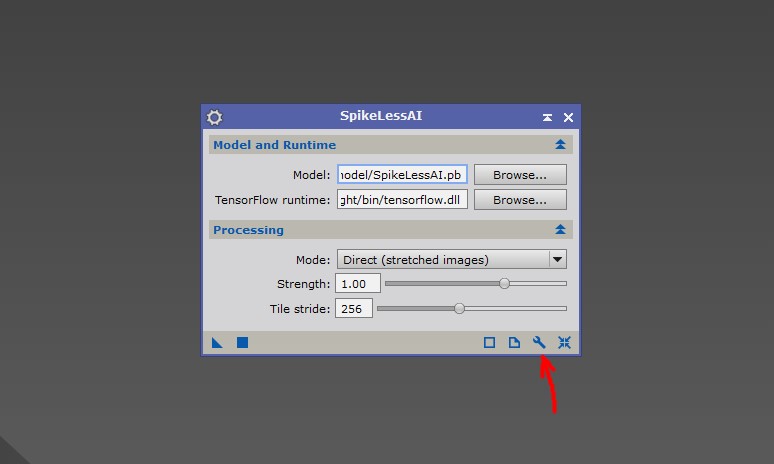
After installing, go to Process > ImageRestoration and click SpikelessAI. Press the wrench icon to open the activation window.
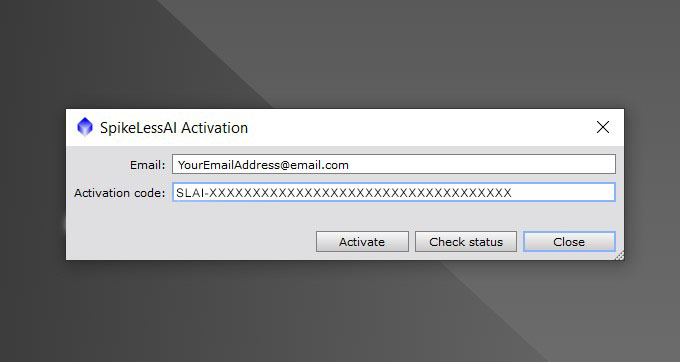
Enter the email address you used to buy SpikelessAI and the activation code from the email you received, then click Activate.
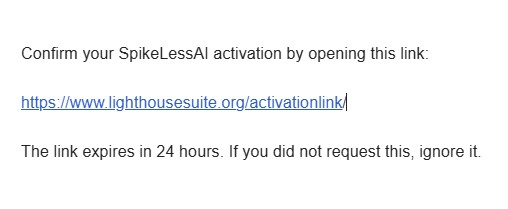
You'll receive a second email with an activation link. You must click that link to activate your SpikelessAI module.
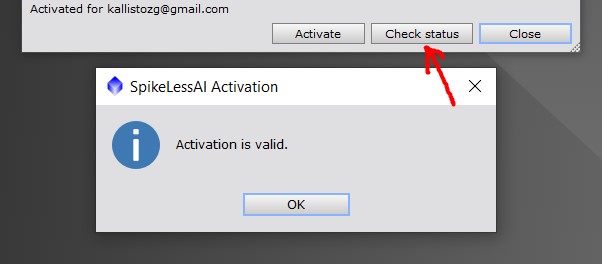
Back in the activation window, press Check Status. You should see a message confirming activation is valid.